

Automation
WhatsApp Flows (In-Chat Forms)
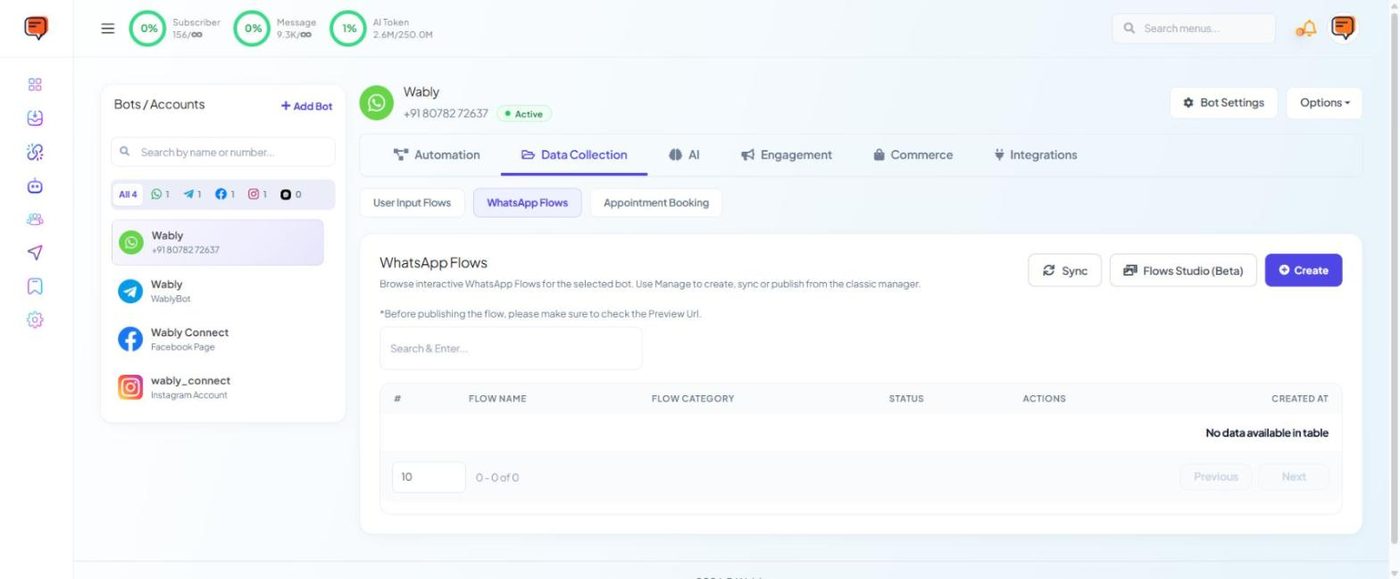
Build native, multi-screen forms that open inside WhatsApp — for orders, appointments and registrations — from Data Collection → WhatsApp Flows, and save submissions to custom fields, sheets or webhooks.
WhatsApp Flows are interactive forms that open inside WhatsApp, with text fields, dropdowns, date pickers and checkboxes on proper screens. Customers fill them in without leaving the chat.
When to use them#
| Use a WhatsApp Flow | Use a User Input Flow |
|---|---|
| Many fields at once (address, date, options) | 2–5 quick questions |
| Appointment or table booking | Simple lead capture |
| Registrations, applications, order forms | Feedback with buttons |
Build one#
- Open Chatbot Manager → your number → Data Collection → WhatsApp Flows.
- Click Create (or Flows Studio (Beta) for the visual designer).
- Add screens and fields: short text, paragraph, dropdown, radio, checkbox, date, opt-in.
- Map each field to a custom field so the answer is saved on the contact.
- Add a final submit screen with a clear button label ("Book appointment").
- Check the Preview URL, then publish. Once published, a flow can't be edited — create a new version for changes.
- Send it from a keyword flow using the WhatsApp Flows block, or from a template with a Flow button.
Flows built in Meta's WhatsApp Manager can be brought in with Sync.
After submission#
Each submission can update the contact's custom fields and labels, trigger a confirmation message, and send the data to a webhook or Google Sheet.
Tip
Test on both Android and iPhone before publishing — field layouts can look slightly different.
Need help? Email support@wably.in with a screenshot and your WhatsApp number — we're happy to help.