

Bot Settings
Bot Settings Overview
The control panel for each connected number — chat-with-human email, no-match reply, get-started message, webhooks, business hours, shared inbox behaviour and automatic actions.
Every number or account in Wably has its own Bot Settings. Open Chatbot Manager, select the number in Bots / Accounts, then click Bot Settings at the top right.
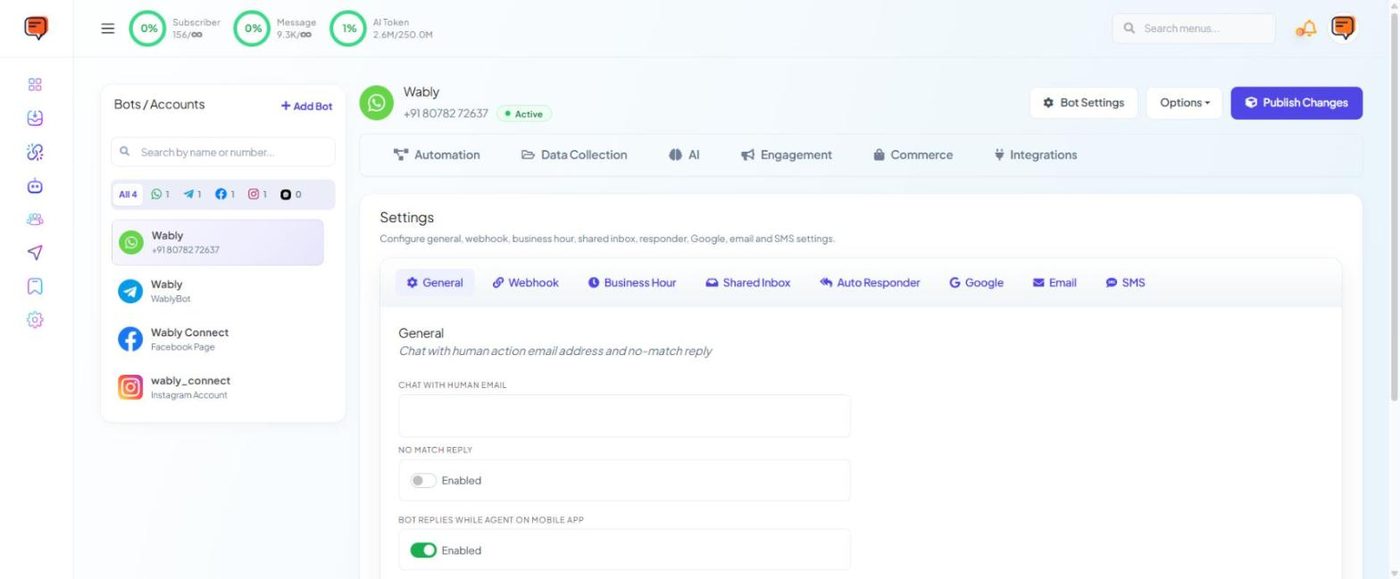
The tabs at a glance#
| Tab | What it controls |
|---|---|
| General | Chat-with-human email, no-match reply, replies while an agent uses the mobile app, and the get-started message |
| Webhook | Send message and subscriber events to your own systems — see Webhooks & automatic actions |
| Business Hour | Timezone, off days, working hours and what happens outside them — see Business hours |
| Shared Inbox | Agent signature, pausing the bot and AI while an agent chats, typing indicator, session expiry |
| Auto Responder | Add collected emails to Mailchimp, Brevo, ActiveCampaign or Mautic lists |
| Send collected subscribers to a Google Sheet | |
| Email / SMS | Automatic emails or SMS when a customer shares their email or number |
Important
After changing anything here, click Publish Changes (top right) so your live bot uses the new settings.
General tab#
- Chat with Human Email — the address notified when a customer taps Chat with Human. Set this first so nobody waits unanswered.
- No Match Reply — switch on to reply when the bot doesn't recognise a message. A frequency limit stops the same reply repeating too often.
- Bot Replies While Agent on Mobile App — whether the bot keeps replying while a staff member is chatting from the phone.
- Get Started Message — switch on to greet brand-new contacts. Choose the frequency: Every Time or Once a day.
The content of the welcome and no-match replies is built under Automation → Quick Actions — see Quick actions.
Shared Inbox tab#
- Signature message — optionally sign agent replies with their name ("— Anu from Fresh Mart").
- Disable Bot Reply / Disable AI Agent while an agent is chatting, plus Bot / AI Agent Auto Enable Time (in minutes) to switch automation back on afterwards.
- Typing indicator — shows "typing…" to the customer.
- Session expiry times for input flows and chat-with-human sessions.
Tip
Once these are set, build your main menu with a keyword chatbot.
Need help? Email support@wably.in with a screenshot and your WhatsApp number — we're happy to help.