

Quick Actions (Action Buttons)
The nine built-in replies every bot needs — Get-started, No Match, Location Reply, Un-subscribe, Re-subscribe, Chat with Human, Chat with Bot, Confirm Order and Cancel Order.
Some replies are needed by every bot. Instead of building them from scratch, Wably gives you ready-made Action Buttons you can edit. Find them under Chatbot Manager → Automation → Quick Actions.
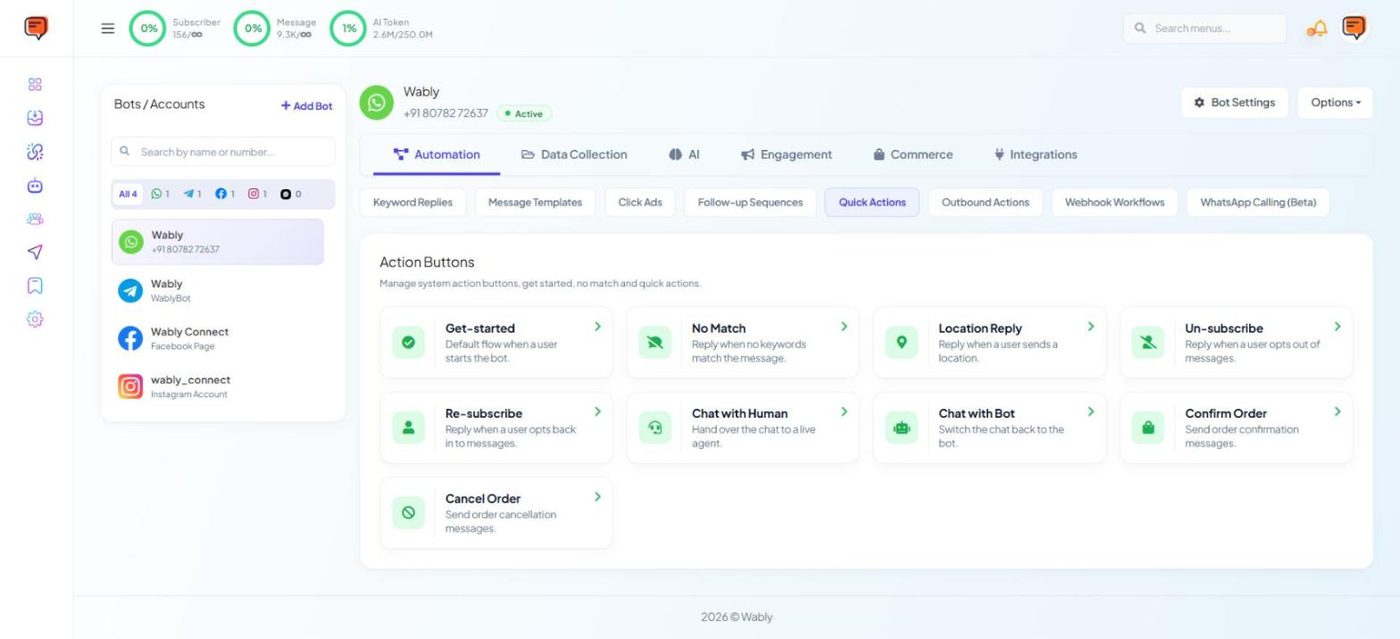
The nine actions#
| Action | Runs when | Typical use |
|---|---|---|
| Get-started | A user starts the bot | Welcome menu |
| No Match | No keyword matches the message | "Type menu to see options" |
| Location Reply | A user sends a location | Nearest branch, delivery check |
| Un-subscribe | A user opts out of messages | Confirm they won't get marketing |
| Re-subscribe | A user opts back in | Welcome them back |
| Chat with Human | A user asks for a person | Hand over to a live agent, pause the bot |
| Chat with Bot | Switching the chat back to the bot | Resume automation after an agent finishes |
| Confirm Order | An order needs confirming | Order confirmation message |
| Cancel Order | An order is cancelled | Cancellation message |
Click a card to open it in the Flow Builder and change the reply. Remember to switch No Match Reply and Get Started Message on in Bot Settings → General.
A catch-all reply#
If customers often type free text ("do you deliver to Kottakkal?"), a catch-all stops the conversation hitting a dead end. Two good approaches:
- Point back to the menu — a No Match reply with your main buttons.
- Hand it to AI — set your AI agent to AI as a Fallback Only, so unmatched questions are answered from your business knowledge.
Always keep Un-subscribe working. Customers who can't opt out press Block instead — and blocks hurt your quality rating.