

Create a Message Template
Build a WhatsApp template in Wably — choose the category, add header, body, variables and buttons, submit to Meta and send once approved.
A template is a message Meta approves in advance. You need one to message someone outside the 24-hour customer service window — for broadcasts, reminders, sequences and first messages to imported contacts.
Parts of a template#
| Part | Required? | Limits & notes |
|---|---|---|
| Header | Optional | Text (60 chars) or media — image, video or document |
| Body | Yes | The main message, up to 1,024 characters; supports variables like {{1}} |
| Footer | Optional | Small grey text, 60 chars — e.g. "Reply STOP to opt out" |
| Buttons | Optional | Quick replies, a website link, a phone number, copy-code or a Flow button |
Where templates live#
Chatbot Manager → select your number → Automation → Message Templates. The Templates tab lists each template with its category, type (text or media), status and last update; the Variables tab manages the template variables you map to subscriber data.
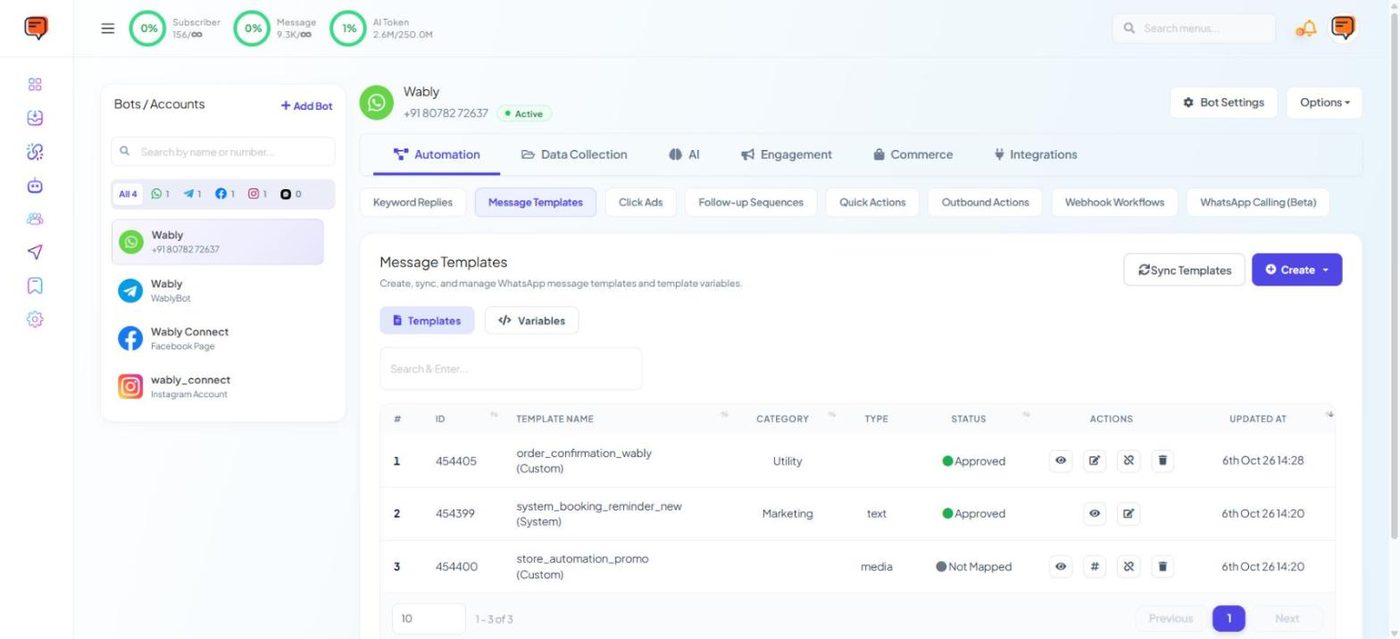
Row actions let you view, edit, map variables and delete a template.
Create one in Wably#
- Click Create (the arrow shows the template types, such as a standard message or carousel).
- Name it in lowercase with underscores:
order_shipped_v1. - Choose a category — Marketing, Utility or Authentication (see Template categories).
- Choose the language.
- Add the header, body, footer and buttons.
- For each variable, give a sample value — Meta reviews with the samples — and map it to subscriber data (e.g.
{{1}}→ first name). - Submit. Most templates are reviewed within minutes; some take up to 24 hours.
- Once Approved, use it in broadcasts, sequences, chatbots (Template Message block) and the inbox.
A template showing Not Mapped hasn't had its variables connected to subscriber data yet. Click the # (map) action on that row before using it in a broadcast.
Example — utility#
Header: 📦 Order shipped Body: Hi {{1}}, your order #{{2}} from Fresh Mart has been shipped and will reach you by {{3}}. Button: [Track order] → link
Templates made in WhatsApp Manager#
If you build a template directly in Meta's WhatsApp Manager, click Sync Templates on Wably's Message Templates page to bring it in.
Carousel templates (swipeable cards with images and buttons) are great for showing 2–10 products or packages. Choose Carousel as the template type when creating.