

Build Your First Keyword Chatbot
Build a menu-driven WhatsApp chatbot in Wably's Flow Builder — Chatbot Manager → Automation → Keyword Replies → Create, set trigger keywords, add messages and buttons, and save.
A keyword chatbot replies automatically when a customer sends certain words ("hi", "menu", "price") or taps a button. It's the backbone of most WhatsApp automations.
Where it lives#
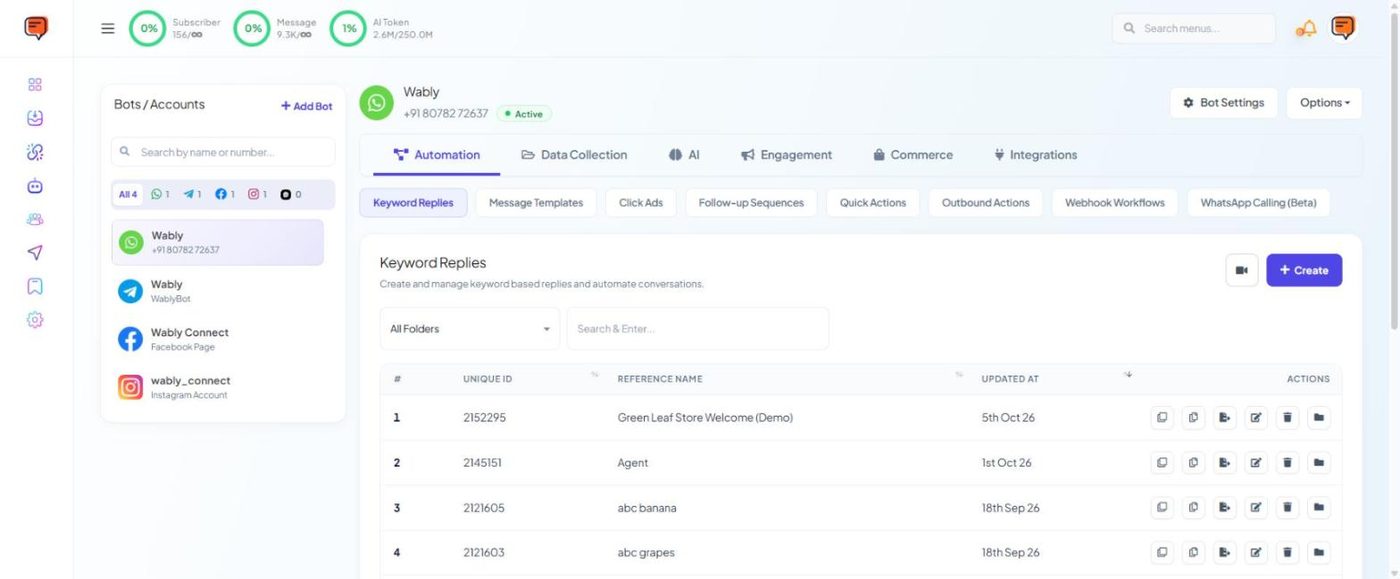
Chatbot Manager → select your number → Automation → Keyword Replies. The list shows every flow with its ID, reference name and last update. Use the action icons to duplicate, export, edit or delete a flow, or move it into a folder. The camera icon next to Create opens a video tutorial.
How the Flow Builder works#
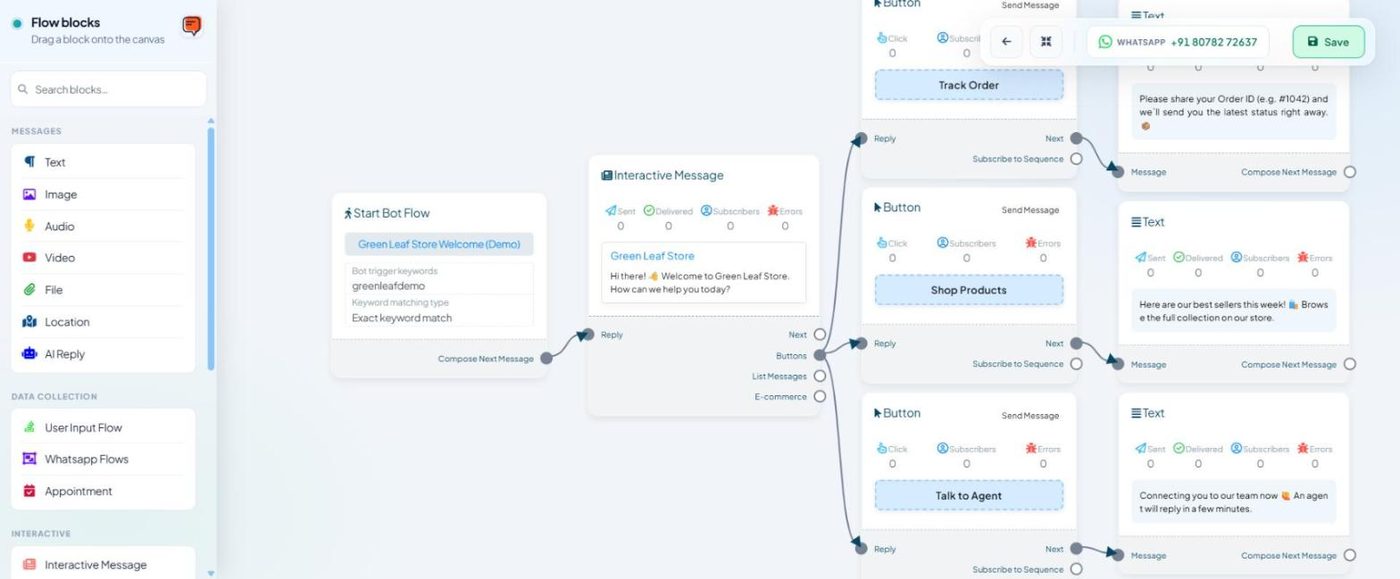
Click Create (or edit an existing flow) to open the Flow Builder. Drag blocks from the left panel onto the canvas and connect them with lines.
| Block group | Blocks |
|---|---|
| Messages | Text, Image, Audio, Video, File, Location, AI Reply |
| Data Collection | User Input Flow, WhatsApp Flows, Appointment |
| Interactive | Interactive Message (buttons or list), Template Message, CTA URL Button |
| Flow Control | Condition, New Sequence Campaign, Label Assign, Random Number Generator |
| Integrations | HTTP API, Google Sheet Data Fetch |
Every flow starts with a Start Bot Flow block. It holds the flow name, the bot trigger keywords and the keyword matching type (for example Exact keyword match).
Build a simple main menu#
- Go to Automation → Keyword Replies → Create.
- In Start Bot Flow, enter a name (Main menu) and trigger keywords:
hi,hello,menu,start. Choose the matching type. - Drag an Interactive Message block onto the canvas and connect it from Compose Next Message. Write the text and add buttons: > Welcome to Fresh Mart 🛒 What would you like to do? > [Shop Products] [Track Order] [Talk to Agent]
- From each Button, connect the next block:
- Shop Products → a Text or CTA URL Button with your store link
- Track Order → a User Input Flow that asks for the order ID
- Talk to Agent → a Text ("Connecting you to our team 🙋") — then use the Chat with Human quick action
- Click Save at the top right.
- Send
hito your number from another phone to test.
Tips for flows people actually finish#
- Max 3 buttons per message. Use a List for 4–10 options.
- Button text is short — 20 characters max.
- Always offer a way out — a "Main menu" or "Talk to Agent" button on every branch.
- Tag as you go — add a Label Assign block when someone taps an interest, so you can follow up later.
Set your Main menu flow as the Get-started quick action so new contacts see it automatically.