

Send a Broadcast
Send a template to many subscribers at once from the Broadcast Center — choose labels and lists, filter by country or custom field, schedule, and track delivered, opened and unreached.
A broadcast sends one approved template to many subscribers at once — perfect for offers, announcements, event reminders and restock alerts. Open Broadcasting in the left menu to reach the Broadcast Center.
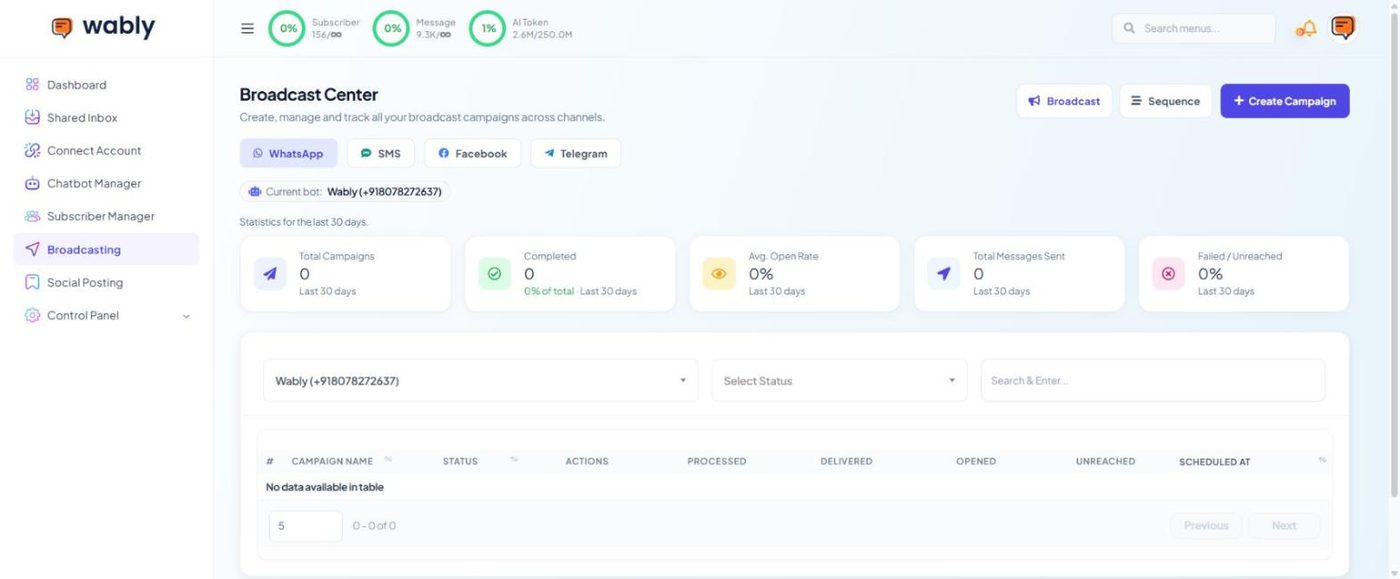
The Broadcast Center has tabs for WhatsApp, SMS, Facebook and Telegram, shows the current bot, and summarises the last 30 days: total campaigns, completed, average open rate, messages sent and failed/unreached.
Before you broadcast#
- ☐ You have an approved template (create one) with its variables mapped
- ☐ Your audience opted in to hear from you
- ☐ A payment method is added in Meta for paid templates
- ☐ The audience size fits your messaging limit
Create a campaign#
- In the Broadcast Center, make sure the WhatsApp tab and the right number are selected, then click Create Campaign.
-
The campaign editor opens with a Configure Action Button panel. Under Actions, choose Broadcasting.
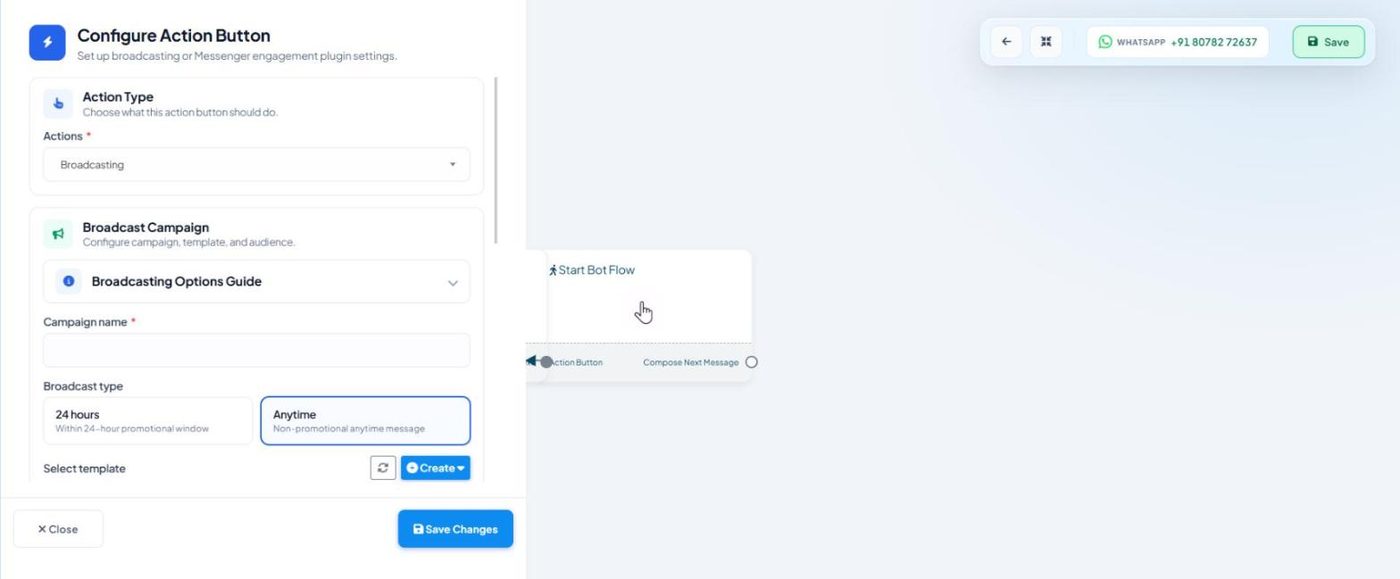
Configure the broadcast — campaign name, broadcast type, template and audience -
Enter a Campaign name (e.g. Onam offer – Kozhikode).
- Pick the Broadcast type:
- 24 hours — only to subscribers whose 24-hour window is still open;
- Anytime — to anyone, using an approved template.
- Select template (use the refresh icon after creating a new one, or Create to make one here).
- Choose the audience:
- Include / Exclude label ids — e.g. include
Interested Lead, excludeOrdered this week; - Include / Exclude Subscriber Lists;
- Country of the subscriber;
- Custom Field + Custom field contains value — e.g.
citycontainsKozhikode; - Use recently added subscribers to target only new contacts.
- Include / Exclude label ids — e.g. include
- Optional: Assign label after broadcast — tag everyone who received it.
- Sending time: send now or choose Send later and pick a date and time.
- Click Save Changes, then Save at the top right.
Use marketing message API sends marketing templates through Meta's Marketing Messages API, which Meta optimises for delivery. Leave it off unless you know you need it.
Personalisation that works#
Hi {{1}} 👋 Our Onam special is now live in {{2}} — 15% off all sadya orders until Sunday. [Order now] [Not interested]
Map {{1}} → first name and {{2}} → city in the template's variables.
Track results#
The campaign list shows each campaign's status (Pending, Processing, Completed, On-hold, Paused) with processed, delivered, opened and unreached counts and the scheduled time. Open a campaign to see why messages failed — common reasons are invalid numbers, numbers not on WhatsApp, payment issues, or reaching your messaging limit.
Broadcast best practice#
- Start small. Send to your most engaged label first, check results, then expand.
- Always include an opt-out button, and label people who tap it so they're excluded next time.
- Send at sensible times — late morning and early evening work well for most audiences.
- Don't repeat the same blast to people who didn't respond.
A broadcast to people who don't know you is the fastest way to a red quality rating and a restricted number. Read WhatsApp rules before your first campaign.