

Website Chat Widget
Add a floating WhatsApp button to your website from Chatbot Manager → Engagement → Chat Entry, paste the embed code, and optionally add live Webchat.
The chat widget puts a WhatsApp button on your website. Visitors tap it and land in a WhatsApp chat with your business — no need to save your number.
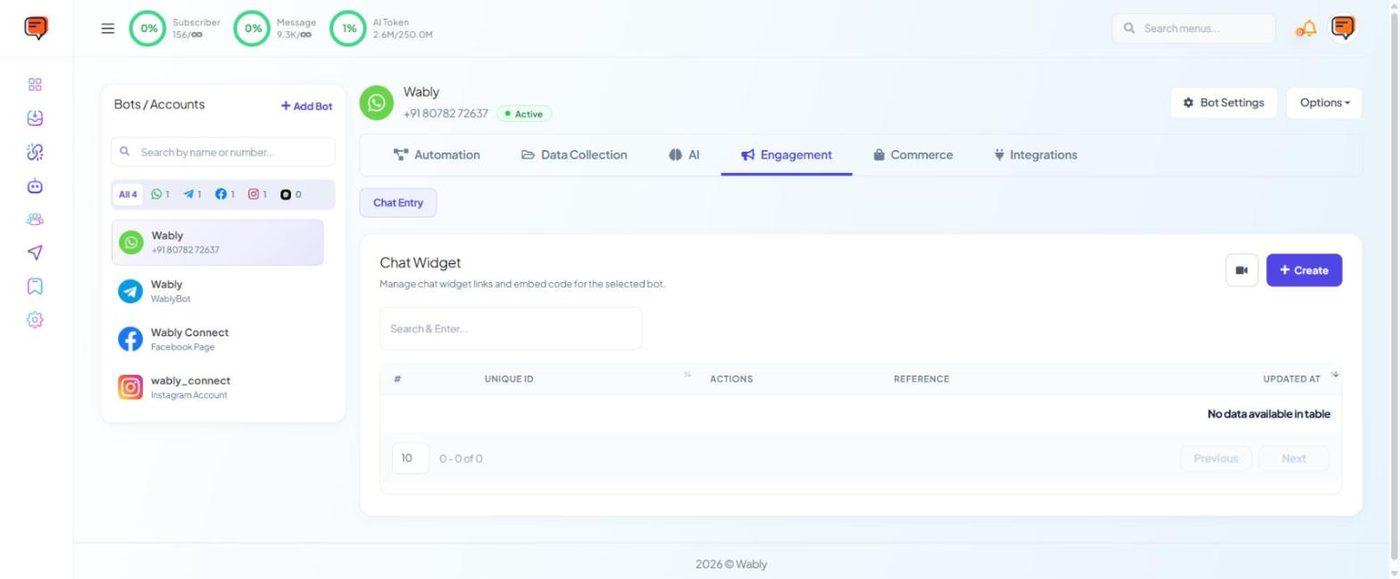
Create the widget#
- Open Chatbot Manager → your number → Engagement → Chat Entry and click Create. (The camera icon opens a video tutorial.)
- Customise the button colour, position, greeting text and the pre-filled message (e.g. "Hi, I came from your website").
- Save, then use the row's actions to copy the embed code or the chat link.
Add it to your site#
Any HTML site: paste the code just before the closing </body> tag on every page (or in your site-wide footer template).
WordPress: 1. Install a header/footer script plugin (for example WPCode), or use your theme's custom code area. 2. Paste the embed code into the footer section. 3. Save and clear any caching plugin.
Hostinger Website Builder / Wix / Shopify: use the "Custom code" or "Embed code" option in site settings and add it to the body/footer.
Want live chat on the website itself?#
Webchat is a separate channel: a chat box on your site where visitors talk to your bot and team without opening WhatsApp. Set it up from Connect Account → Connect Webchat. Webchat conversations arrive in the same Shared Inbox.
Use a different pre-filled message on each landing page ("Hi, I'm interested in the Kerala tour package"). Then a keyword chatbot can reply with exactly the right information.