

Create Your First AI Agent
Set up an AI agent that answers customers from your own business information — Chatbot Manager → AI → Agents → Create Agent, then switch it on in AI Configuration.
An AI agent answers customers in natural language, 24/7, using information you give it. It handles the questions your keyword menu can't — "do you deliver to Kottakkal?", "what's the fee for the NEET crash course?" — and hands over to your team when needed.
AI is set up per number, under Chatbot Manager → select your number → AI. It has two sub-pages: Agents (who the AI is and what it knows) and AI Configuration (when it answers and how chats are routed).
Step 1 — Create the agent#
-
Open AI → Agents and click Create Agent.
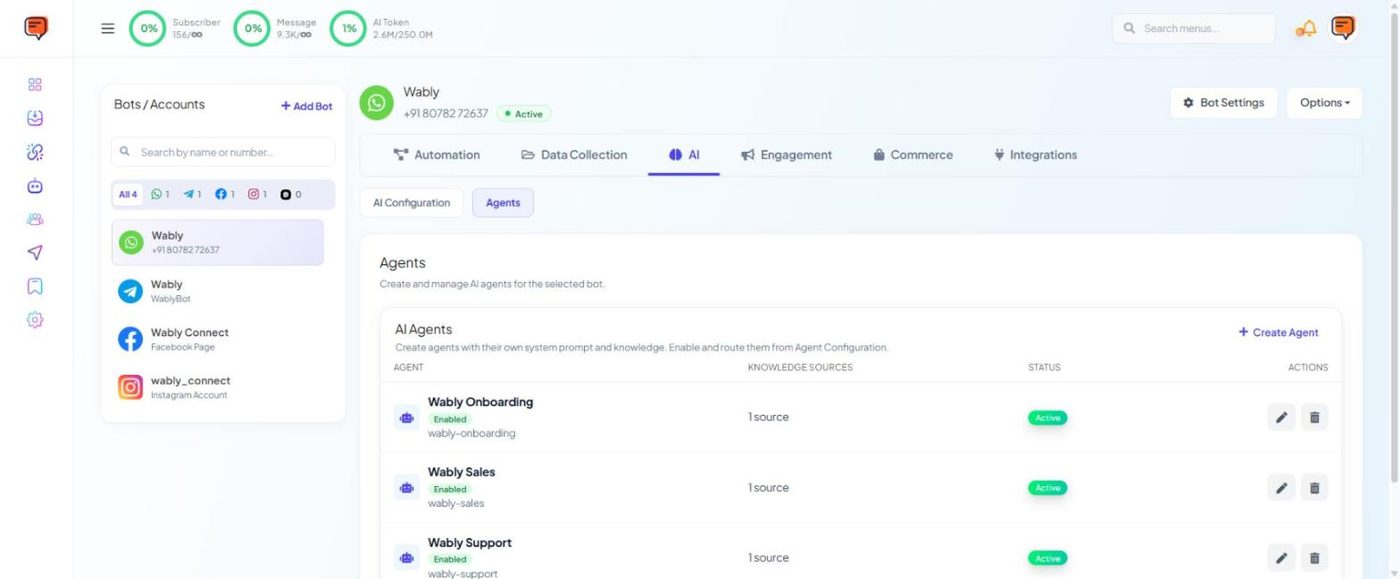
AI → Agents — each agent with its knowledge sources and status -
Fill in:
- Name — customers may see it.
- Slug — filled in automatically from the name if left empty.
- Status — Active or Inactive.
- Description — its job, e.g. "Answers questions about our courses, fees and batch timings."
- System Prompt — how it should behave (template below). Type
##to insert actions such as assigning a label or handing over to a human.
- Add knowledge — see Train your AI agent.
- Click Save Agent.
Step 2 — Switch it on#
-
Open AI → AI Configuration.
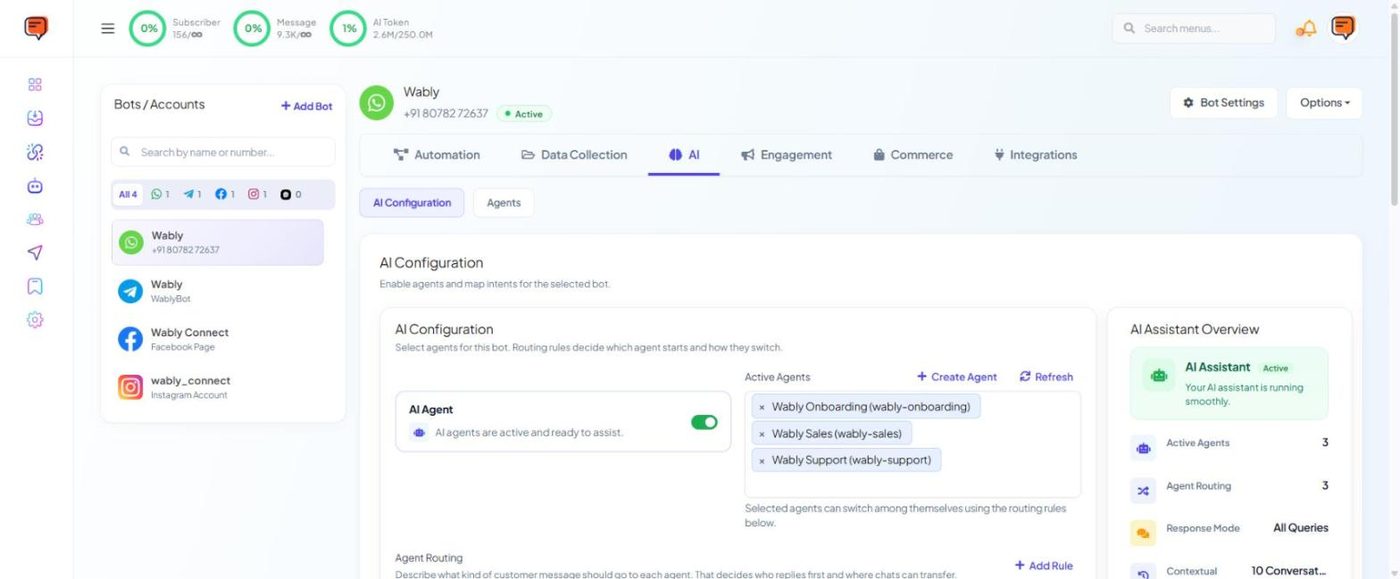
AI Configuration — enable AI, choose active agents and routing, and see the overview -
Turn on the AI Agent switch.
- Add your agent to Active Agents.
- Choose the AI Response Mode:
- AI Agent for All Queries — the AI answers every message, even when a keyword flow could match;
- AI as a Fallback Only — keyword flows run first; the AI answers only when nothing matches. Recommended if you already have menus.
- Click Save Settings.
The AI Assistant Overview on the right confirms it's active and shows your active agents, routing rules, response mode, memory and restricted topics.
An instruction template#
You are Anu, the WhatsApp assistant for Fresh Mart, a grocery store in Tirur.
- Answer only from the knowledge provided. If you don't know, say so and offer to connect a staff member.
- Reply in the customer's language (Malayalam or English). Keep replies under 60 words.
- Be warm and polite. Use at most one emoji.
- Never invent prices, offers or delivery times.
- If the customer wants to place an order, complain, or asks for a person, hand over to the team.
Other settings in AI Configuration#
| Setting | What it does |
|---|---|
| Contextual Memory | How many recent conversations the AI remembers (2–30). More memory uses more AI tokens. |
| Assignment | Hand chats to a team or department |
| Do Not Assign Agent in Business Off Hour | Avoids handing chats to people outside working hours |
| Typing indicator | Shows "typing…" while the AI writes |
| Restricted Topics | Topics the AI must not discuss, with a fixed reply |
| Delay for AI Reply | Wait 0–60 seconds before replying, so it feels more natural |
| AI Reasoning Level | Low, Medium or High — higher is more careful but uses more tokens |
AI replies use AI tokens from your plan — see the AI Token ring at the top of every page.